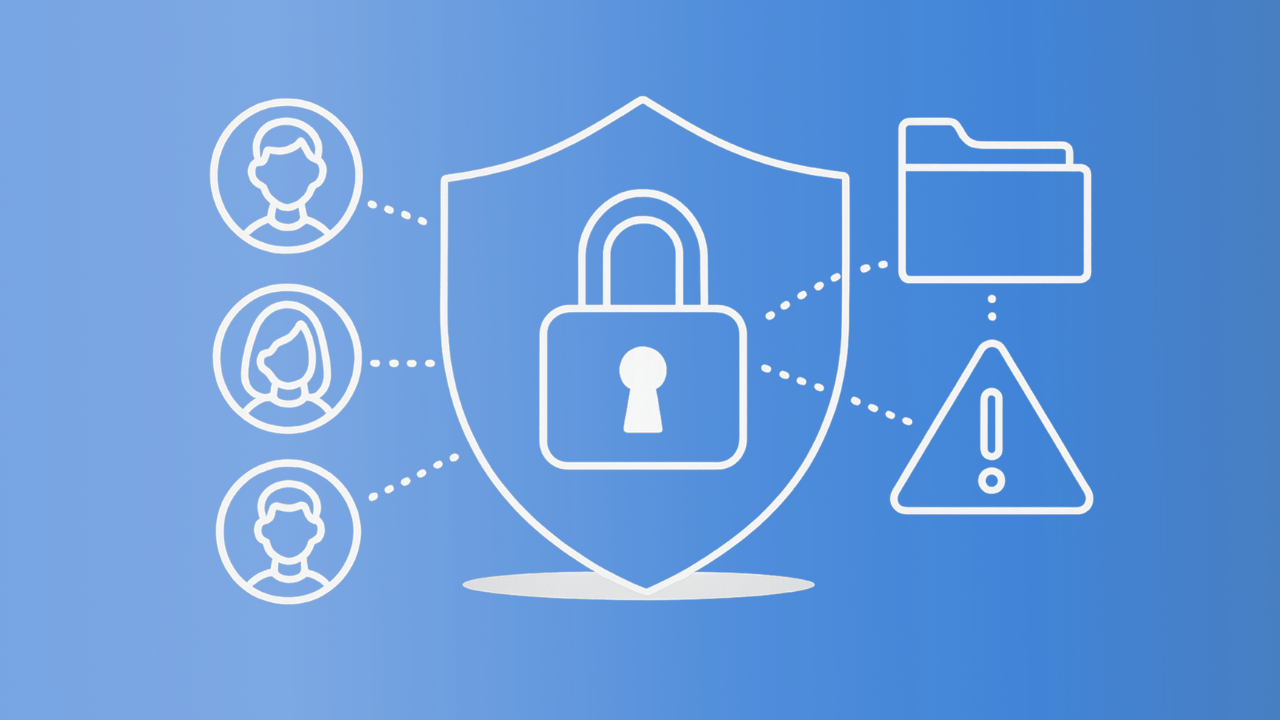
Permission Setting Problems – Control Access to Personal Information
Permission settings decide which apps, websites, and device features can reach personal data such as your location, camera, microphone, contacts, photos, and files. Problems often appear when permissions are granted too broadly, blocked accidentally, or changed after an update.
The safest fix is to review access one category at a time rather than turning every permission on.
Start With the Permission That Is Causing Trouble
First identify what the app is trying to do. A video-calling app may need camera and microphone access, while a weather app may request location access. Giving unrelated permissions rarely fixes the original problem.
Open the device or operating system privacy settings, locate the affected app, and check its current access. Change only the permission connected to the missing feature, then reopen the app and test it.
Check Both App and System Controls
Some programs have their own privacy switches in addition to system-level permissions. A microphone can therefore be allowed by Windows, Android, or iOS while still being disabled inside the application.
Review Access Instead of Granting Everything
Permission prompts are easy to approve quickly, especially during installation. Over time, that can leave apps with access they no longer need.
People reviewing device settings may also encounter general technology reference pages while comparing terminology and software concepts. Whatever resource you use, the important step is checking what each permission actually allows before enabling it.
Remove access that no longer serves a clear purpose. If an app stops working afterward, you can restore the specific permission it requires.
Look for Permissions Changed by Updates
Operating system and app updates can occasionally reset, reorganize, or introduce privacy controls. If a feature worked yesterday but suddenly stopped after an update, review permissions before reinstalling the software.
General online verification resources may be useful when you are comparing information found across the web, but your device’s own privacy panel remains the place where actual access is controlled.
Check whether the app now appears under a different category or whether a newly introduced setting is blocking access.
| Problem | Likely Setting | First Check |
|---|---|---|
| Camera unavailable | Camera permission | App privacy access |
| No microphone input | Microphone permission | Input and app controls |
| Location not updating | Location access | Precise/background access |
| Files won’t open | Storage permission | Files and folders access |
Reset Permissions Carefully
If settings have become confusing, some devices let you reset app permissions without deleting personal files. This can be useful when several apps are affected at once.
Before resetting anything, note important settings so you can restore them later. Broader technical guidance collections can help you become familiar with common troubleshooting language, but reset options vary by device and operating system.
After a reset, open apps individually and approve only the permissions they genuinely need.
Common Permission Mistakes to Avoid
One mistake is assuming that enabling every switch is the fastest repair. It can create unnecessary privacy exposure without solving the actual fault.
Another problem is repeatedly denying a required permission and then reinstalling the app. Reinstallation may produce the same failure because the underlying privacy rule remains unchanged. Check the permission path first, test the feature, and make one change at a time.
Frequently Asked Questions
Why does an app keep asking for the same permission?
The permission may not have been saved, may be restricted by the operating system, or may require an additional setting such as background access. Check both the app settings and the device privacy panel.
Should I allow every permission an app requests?
No. Grant access based on the feature you actually use. A permission should have a clear connection to the app’s function rather than being enabled automatically.
Can an update change permission settings?
Yes. Updates can introduce new controls, reorganize privacy menus, or occasionally require permissions to be approved again. Review settings if a previously working feature stops after an update.
Keep Access Limited and Purposeful
Permission problems are easier to solve when you connect each setting to a specific feature. Start with the affected function, inspect both system and app controls, and change only what is necessary. Once everything works, remove any unrelated access that was enabled during troubleshooting.